React Native项目如何编译成鸿蒙应用

本文以@react-native-community/datetimepicker 作为示例,详细介绍具体步骤。
RN 鸿蒙支持文档:https://gitee.com/react-native-oh-library/usage-docs/tree/master/zh-cn

环境配置

  1. 安装 DevEco Studio 点击下载
  2. 下载 HarmonyOS SDK
  3. 下载 node.js (v18.14.0+)
  4. 配置 HDC 环境变量(配置到 window 系统变量中)
1
2
HDC_SERVER_PORT = 7035
RNOH_C_API_ARCH = 1

示例工程

(1)创建一个 react-native 工程

npx react-native@0.72.5 init AwesomeProject --version 0.72.5

(2)安装react-native-harmony

1
2
3
4
5
6
7
{
# rnoh-react-native-harmony-0.72.29.tgz是转换鸿蒙的核心包一定要有,不然后面的步骤都不能进行, 已存到百度网盘
"react-native-harmony": "file:../react-native-harmony/rnoh-react-native-harmony-0.72.29.tgz",
# 安装react-native-harmony之后,才能识别codegen-harmony
"codegen": "react-native codegen-harmony --cpp-output-path ./entry/src/main/cpp/generated
--rnoh-module-path ./entry/oh_modules/@rnoh/react-native-openharmony"
}

PS: 配置好后,执行下npm install, 要装下react-native-harmony包

(3)替换工程文件

AwesomeProjectReplace.zip已存放百度网盘,主要是metro.config.js和package.json文件

1
2
3
4
5
6
7
8
9
10
11
12
13
14
15
-------------------package.json------------------
// 安装@react-native-community/cli和@react-native/codegen这两个依赖
{
"dependencies": {
"@react-native-oh/react-native-harmony": "^0.72.38", // PS: 这个包很重要,是react-native的鸿蒙包

},
"overrides": {
"@react-native-community/cli": "11.3.6",
"@react-native/codegen": "0.74.0"
},
"resolutions": {
"@react-native-community/cli": "11.3.6"
}
}
1
2
3
4
5
6
7
8
9
10
11
12
13
14
15
16
17
18
19
20
21
22
----------------------metro.config.js-----------------------------
const {mergeConfig, getDefaultConfig} = require('@react-native/metro-config');
const {createHarmonyMetroConfig} = require('react-native-harmony/metro.config');

/**
* @type {import("metro-config").ConfigT}
*/
const config = {
transformer: {
getTransformOptions: async () => ({
transform: {
experimentalImportSupport: false,
inlineRequires: true,
},
}),
},
};

module.exports = mergeConfig(getDefaultConfig(__dirname), createHarmonyMetroConfig({
reactNativeHarmonyPackageName: 'react-native-harmony',
}), config);

(4)安装@react-native-community/datetimepicker

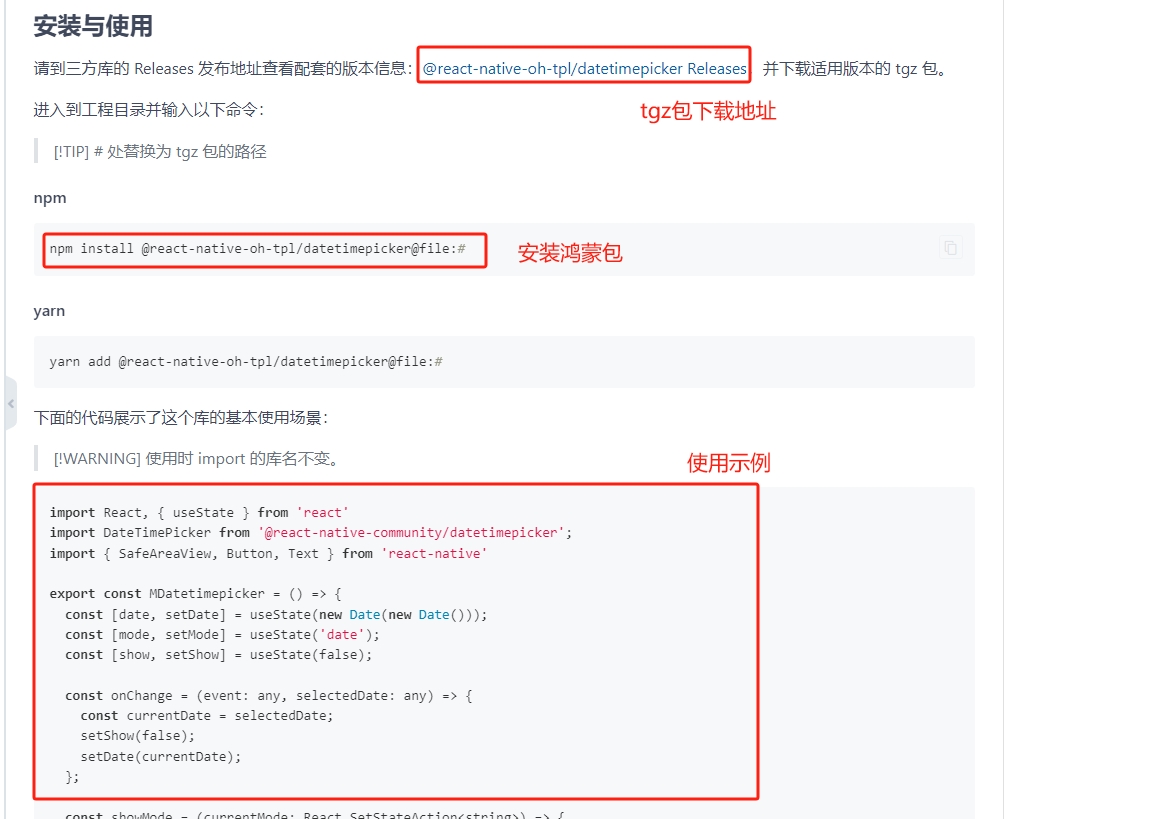
参考安装文档: @react-native-community/datetimepicker

1
2
3
4
5
6
1.下载 react-native-oh-tpl-datetimepicker-7.6.2-0.1.1.tgz

2.安装@react-native-oh-tpl/datetimepicker鸿蒙包, 如下:

$ npm install @react-native-oh-tpl/datetimepicker@file:library/
react-native-oh-tpl-datetimepicker-7.6.2-0.1.1.tgz // ps: 安装rn对于的鸿蒙包, 下载tgz放在library目录下

图片

(5)把@react-native-oh-tpl/datetimepicker 鸿蒙包(.har)复制到鸿蒙项目
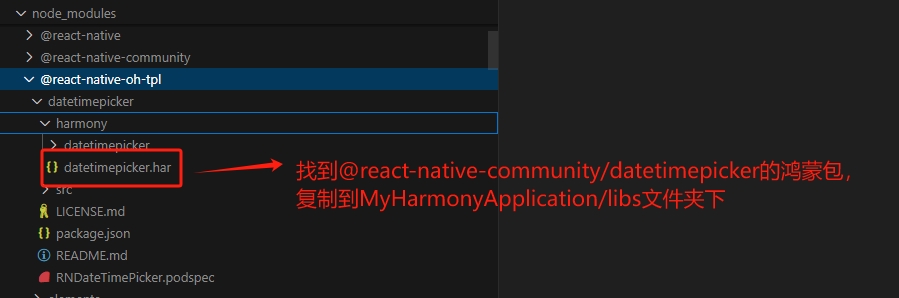
图片

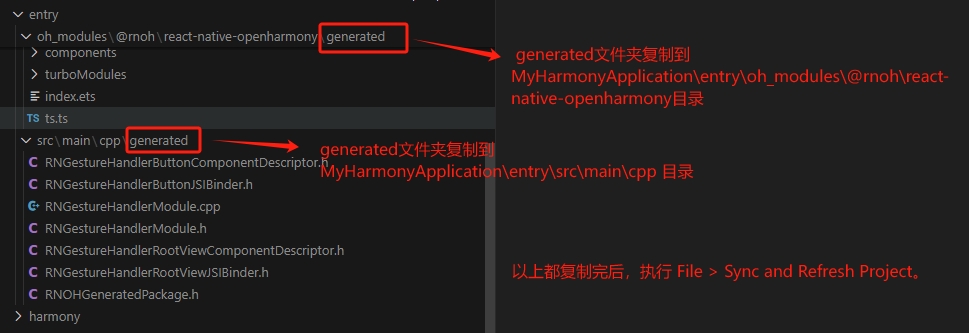
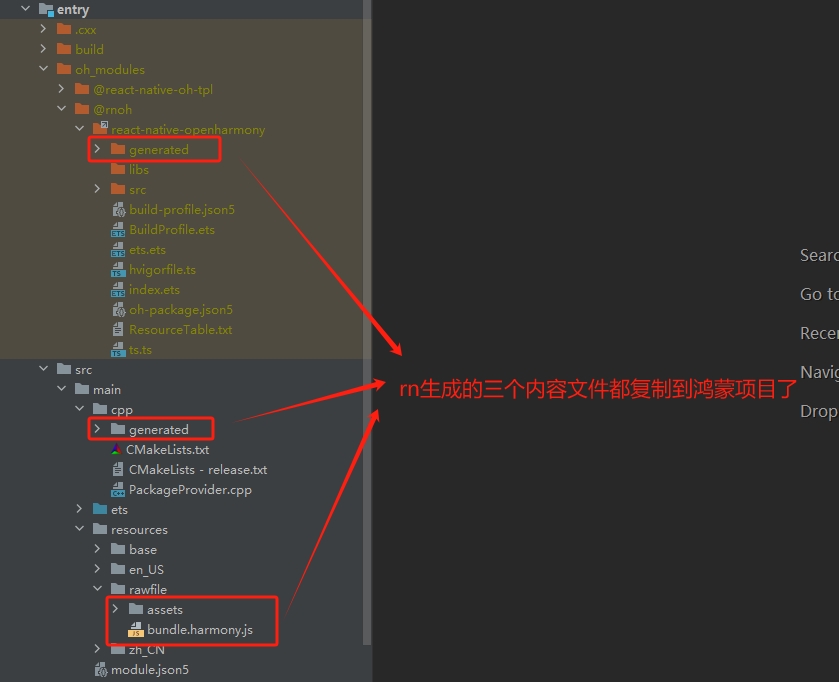
(6)使用 codegen 生成鸿蒙代码, 并复制到鸿蒙项目

1
2
3
4
5
6
7
8
9
10
11
// <!-- package.json -->
{
"script": {
"build": "node build.js", // 自定义脚本
},
{
"dependencies": {
"@react-native-oh-tpl/datetimepicker": "file:library/react-native-oh-tpl-datetimepicker-7.6.2-0.1.1.tgz",
}
}
}
1
2
3
4
5
6
7
8
9
10
11
12
13
14
15
16
17
18
19
20
21
22
23
24
25
26
27
28
29
30
31
32
33
34
35
// <!-- build.js -->

const { exec } = require("child_process");
// 定义要执行的脚本列表
const scripts = [
// 1. codegen生成鸿蒙CPP文件
`react-native codegen-harmony --cpp-output-path ./entry/src/main/cpp/generated
--rnoh-module-path ./entry/oh_modules/@rnoh/react-native-openharmony`,
// 2. 生成rn业务bundle文件
"react-native bundle-harmony --dev",
// 3. 把第1步和第2步生成的文件放到鸿蒙项目中
"node copy-to-harmony.js",
];

function runScript(index) {
if (index >= scripts.length) {
console.log("所有脚本已执行完毕");
return;
}
const script = scripts[index];
console.log(`正在执行 ${script}...`);
exec(script, (error, stdout, stderr) => {
if (error) {
console.error(`执行 ${script} 时出错:`, error);
return;
}
if (stderr) {
console.error("标准错误:", stderr);
}
// 执行下一个脚本
runScript(index + 1);
});
}
// 开始执行脚本
runScript(0);
1
2
3
4
5
6
7
8
9
10
11
12
13
14
15
16
17
18
19
20
21
22
23
24
25
26
27
28
29
30
31
32
33
34
35
36
37
// <!-- copy-to-harmony.js -->
const fs = require("fs");
const path = require("path");
function copyDir(src, dest) {
if (!fs.existsSync(dest)) {
fs.mkdirSync(dest, { recursive: true });
}
const items = fs.readdirSync(src);
items.forEach((item) => {
const srcPath = path.join(src, item);
const destPath = path.join(dest, item);

if (fs.lstatSync(srcPath).isDirectory()) {
copyDir(srcPath, destPath); // 递归复制文件夹
} else {
fs.copyFileSync(srcPath, destPath); // 复制文件
}
});
}

// 鸿蒙module
const sourceDir1 =
"./entry/oh_modules/@rnoh/react-native-openharmony/generated";
const destinationDir1 =
"../ztk-app-harmony/entry/oh_modules/@rnoh/react-native-openharmony/generated";

// cpp文件
const sourceDir2 = "./entry/src/main/cpp/generated";
const destinationDir2 = "../ztk-app-harmony/entry/src/main/cpp/generated";

// bundle文件
const sourceDir3 = "./harmony/entry/src/main/resources/rawfile";
const destinationDir3 = "../ztk-app-harmony/entry/src/main/resources/rawfile";

copyDir(sourceDir1, destinationDir1);
copyDir(sourceDir2, destinationDir2);
copyDir(sourceDir3, destinationDir3);

图片

图片

图片

(7) 新建鸿蒙项目

这里不再赘述,点击参考文档

(8) 安装鸿蒙包依赖

进入 entry 目录执行ohpm install

1
2
3
4
5
6
7
8
9
10
// <!-- entry/oh-package.json5 -->
// @rnoh/react-native-openharmony 鸿蒙支持RN核心包
// @react-native-oh-tpl/datetimepicker 第三方鸿蒙demo
{
"dependencies": {
// 要用开发包(137M),不要用release包.
"@rnoh/react-native-openharmony": "file:../libs/react_native_openharmony-5.0.0.500.har",
"@react-native-oh-tpl/datetimepicker": "file:../library/datetimepicker.har"
}
}

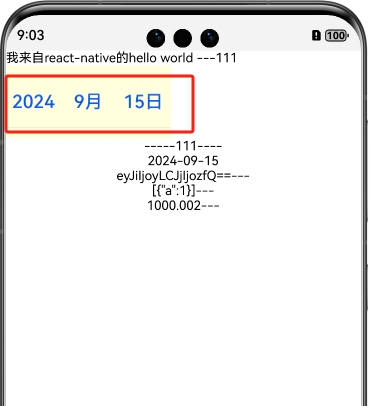
(7)模拟器运行效果

图片

鸿蒙打包&发布

图片

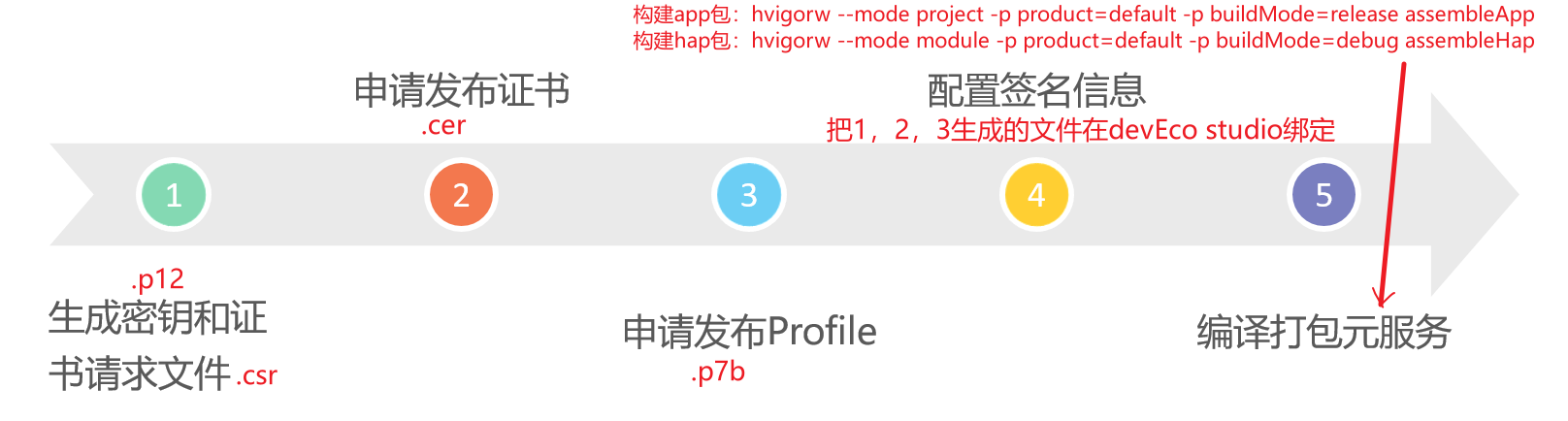
(1)生成密钥和证书请求文件

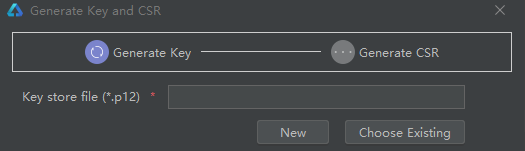
选择“Build > Generate Key and CSR”,填好表单内容就行了。 (ps: 把所有的文件放在一个文件夹中)
图片

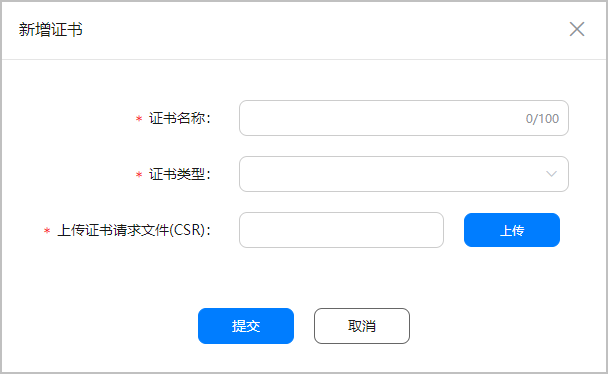
(2)申请发布证书并下载(csr和证书绑定)

图片
图片

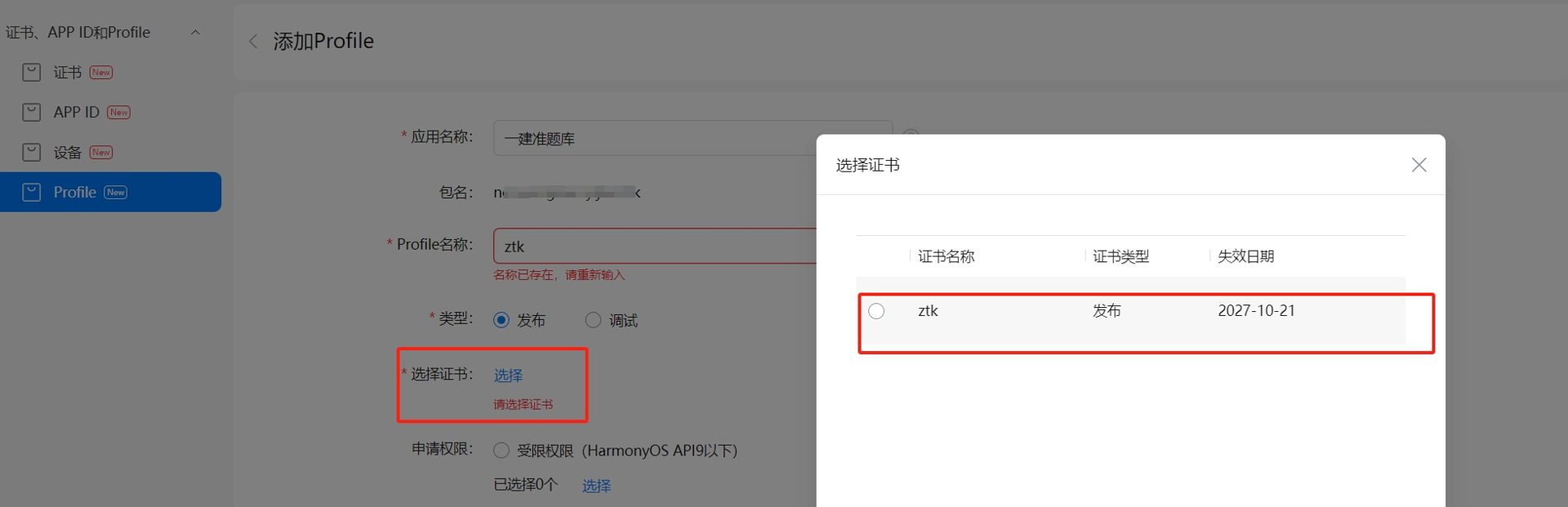
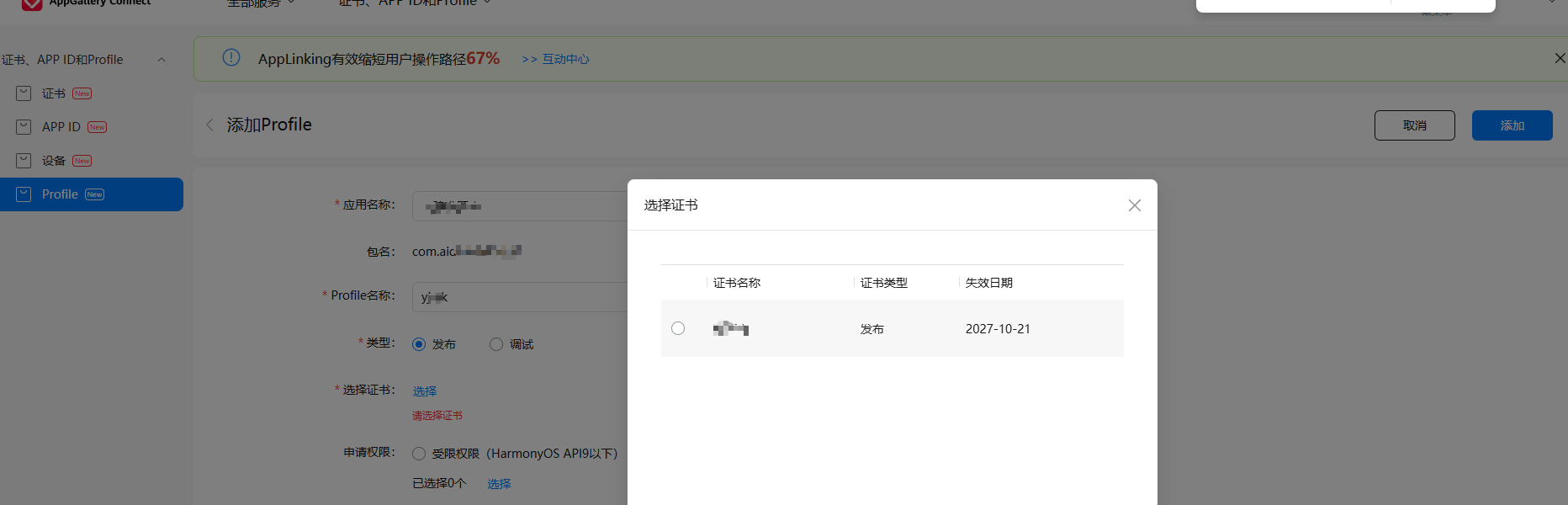
(3)申请发布Profile并下载(profile把证书和app包名绑定)

图片

图片

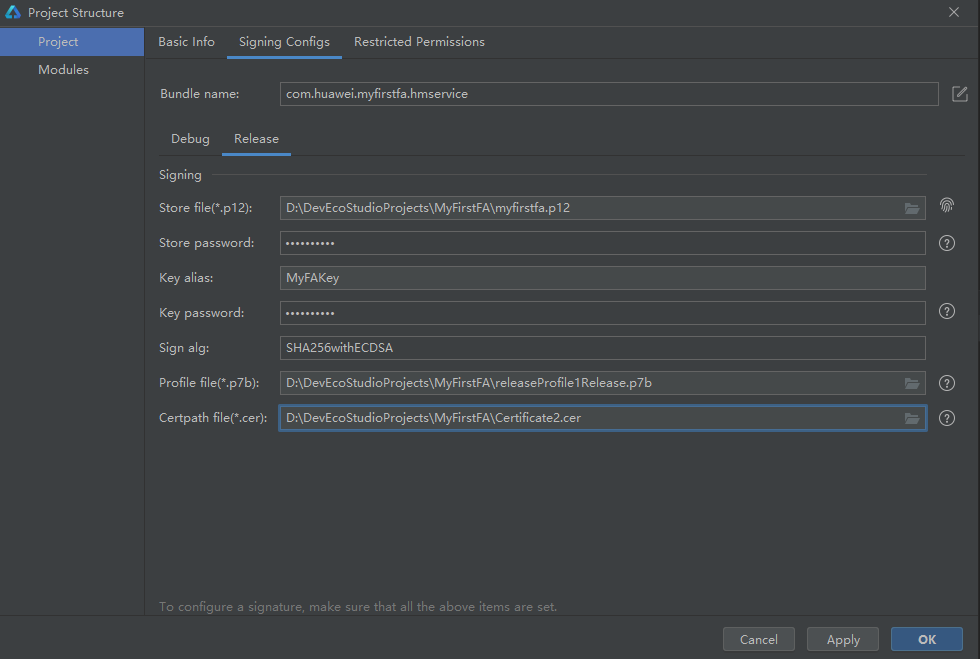
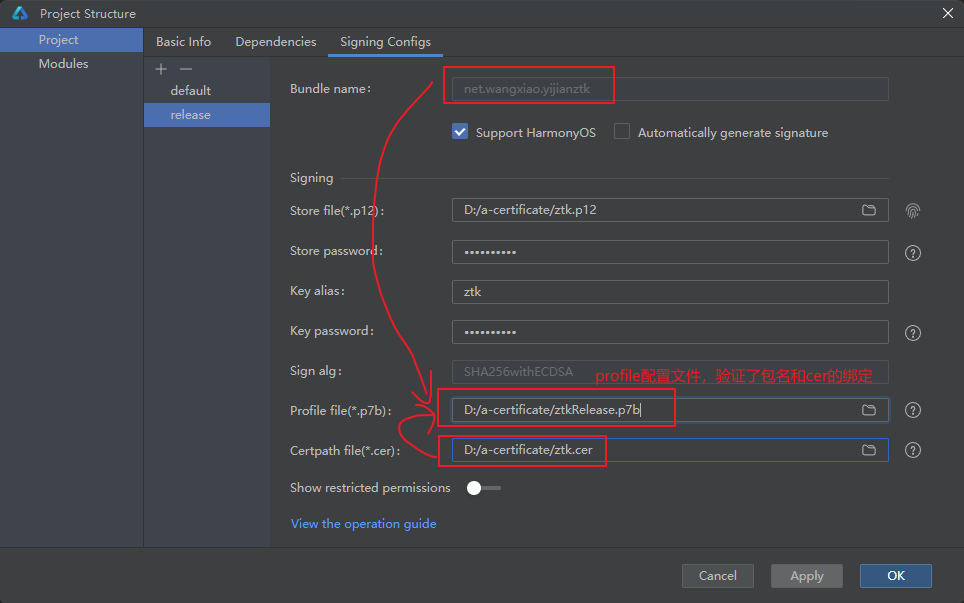
(4)配置签名信息

图片

(5) 配置文件如下

1
2
3
4
5
6
7
8
9
10
11
12
13
14
15
16
17
18
19
20
21
22
23
24
25
26
27
28
29
30
31
32
33
34
35
36
37
38
39
40
41
42
43
44
45
46
47
48
49
50
51
52
53
54
55
56
57
58
59
60
61
62
63
64
65
66
67
68
69
70
71
72
73
74
// build-profile.json5, 新增products, signingConfigs, modules.targets配置
{
"app": {
"signingConfigs": [ // 两种签名配置
{
"name": "default",
"type": "HarmonyOS",
"material": {
"certpath": "D:/a-certificate/xxx_debug.cer", // 调试证书
"storeFile": "D:/a-certificate/xxx.p12", // store密码
"storePassword": "xxxxxx", // store密码,生成时要记住
"keyPassword": "xxxxxx", // store密码
"keyAlias": "ztk", // CSR别名,生成时要记住
"profile": "D:/a-certificate/xxx.p7b", // 证书cer绑定app包名,建两个分别指向debug和release证书
"signAlg": "SHA256withECDSA", // 固定写死
}
},
{
"name": "sgztk",
"type": "HarmonyOS",
"material": {
"certpath": "D:/a-certificate/xxx_sgztk.cer", // 发布证书, RN直接用发布证书
"storeFile": "D:/a-certificate/xxx.p12", // store密码
"storePassword": "xxxxxx", // store密码,生成时要记住
"keyPassword": "xxxxxx", // store密码
"keyAlias": "ztk", // CSR别名,生成时要记住
"profile": "D:/a-certificate/xxx_sgztk.p7b", // 证书cer绑定app包名,建两个分别指向debug和release证书
"signAlg": "SHA256withECDSA",
}
}
],
"products": [ // 配置多product产物,有时需要重设storefile的密码才能生效
{
"name": "default",
"signingConfig": "default",
"compatibleSdkVersion": "5.0.0(12)",
"runtimeOS": "HarmonyOS"
},
{
// 构建时,指向的product产品名称
// hvigorw --mode project -p product=sgztk -p buildMode=debug assembleApp
"name": "sgztk",
"signingConfig": "sgztk", // 指向signingConfigs下的配置项
"compatibleSdkVersion": "5.0.0(12)",
"bundleName": "net.wangxiao.sgztk", // 重写app.json5的bundleName
"runtimeOS": "HarmonyOS",
"bundleType": "app",
"icon": "$media:app_icon", // 配置应用自己的icon
"label": "$string:app_name", // 配置应用自己的名称
"output": {
"artifactName": "sgztk-1.0.0"
},
"vendor": "customizedProductVendorName",
}
],

},
"modules": [
{
"name": "entry",
"srcPath": "./entry",
"targets": [
{
"name": "sgztk",
"applyToProducts": ["sgztk"] // 指向哪个product产物
},
{
"name": "default",
"applyToProducts": ["default"]
}
]
}
]
}
1
2
3
4
5
6
7
8
9
// entry/build-profile.json5
{
// ......, 此处省略部分代码
"targets": [
{
"name": "sgztk" // 新增
}
]
}

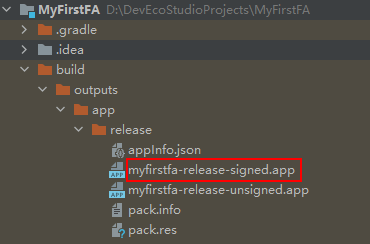
(6)编译打包(App + Hap)

1
2
3
4
5
6
7
8
# 构建hap
$ hvigorw --mode module -p product=default -p buildMode=debug assembleHap

# 安装hap包到本地真机:
hdc install D:\xxx\entry\build\default\outputs\default\entry-default-signed.hap

# 构建APP,可配置项在build-profile.json5中products和buildModeSet
$ hvigorw --mode project -p product=sgztk -p buildMode=release assembleApp

图片

知识扩展或补充RN兼容缺陷

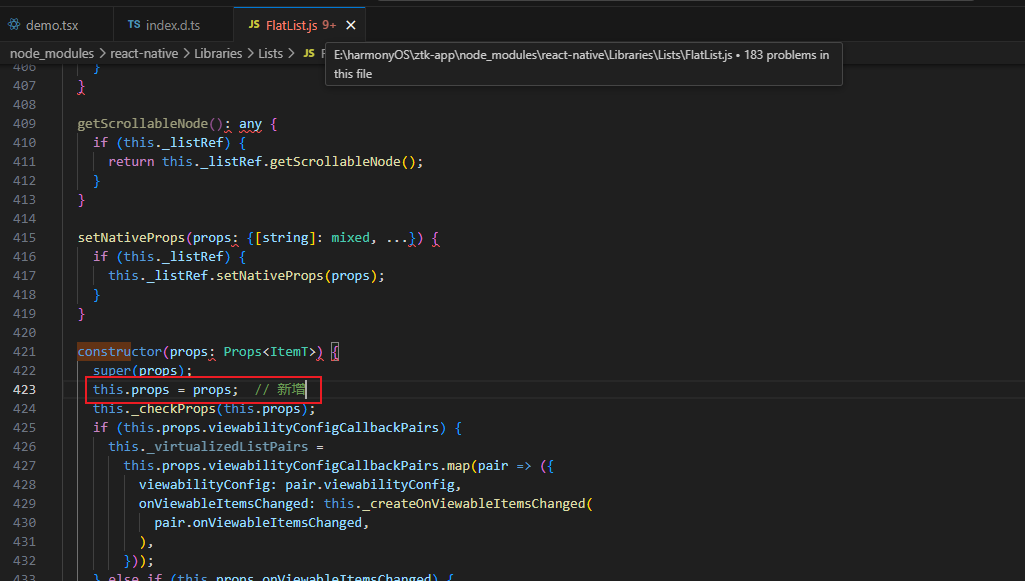
1. react-native Flatlist

node_modules\react-native\Libraries\Lists\FlatList.js
图片

2. 填写 App 特征信息(备案)

https://help.aliyun.com/zh/icp-filing/basic-icp-service/user-guide/fill-in-app-feature-information

3. 签名文件.p12, .csr,.cer,.p7b 的区别

1
2
3
4
// .p12(store file)-私钥
// .csr(公钥)
// .cer(证书文件) -csr 公钥,签名证书文件
// .p7b(profile) -包名和证书绑定

3.1 deveco studio -> build -> generate key

ps: 生成p12和csr密钥对

1
2
3
新建 storefile(.p12)文件时,并没有直接生成.p12 文件,说明 storefile 和和 crs 文件是同时生成的,
所以可以理解成 storefile 是密钥, csr 文件是公钥
结论:storefile(.p12), 是私钥, .csr, 是公钥 (公私钥-密钥对)

3.2 在鸿蒙后台-新增证书

ps: CSR对证书签名,生成cer

1
deveco studio生成的.CSR(理解:用公钥签名), 对证书(.cer)文件加密. 

图片

3.3 在鸿蒙后台-新增profile

ps: App包名和证书绑定

profile

profile

参考文档

uni-app 编译支持鸿蒙
如何为不同的 product 产物配置签名信息?
打包正式版本
鸿蒙配置 APP 多目标构建产物

PS:nvue 编译到鸿蒙后非原生渲染,而是与 web 一样渲染,所以调用原生服务需要使用 uts 调用鸿蒙原生 API。